The best network scanner for Mac in 2026: 9 tools compared
macOS is the one desktop platform that ships without a network scanner, and several tools people still recommend never made it to the Mac at all. Here is what actually runs on macOS, what each one costs, and which one fits the job you have.
Full disclosure: DeviceShelf is our own app, and we have put it first. We think it earns the spot for the use case described below, and we say plainly under each of the other eight where they beat us. Three of them are free.
What is the best network scanner for Mac?
For most people it is DeviceShelf: the only tool in this comparison that combines discovery, identification, monitoring and a security report in one native Mac app, for a one-time purchase with no account. If a quick free list of IPs is enough, LanScan does that well. If you want maximum probing depth and don't mind the Terminal, Nmap is free and unmatched. And Advanced IP Scanner, the tool Windows switchers search for most, does not run on macOS at all. The rest of this page argues each of those calls, tool by tool.
Why you need one on a Mac
macOS does not include one
Windows has had a dozen free scanners for twenty years. macOS has none built in. Network Utility, the small bundled app that offered a ping and a rough port scan, was deprecated in Big Sur and has since been removed, with nothing put in its place. What is left are command-line tools that shipped with Unix decades ago: arp -a lists neighbours your Mac has recently spoken to, ping tests one address at a time, netstat shows your own connections. None of them tell you what a device is, and nmap, the tool most guides reach for, is not installed by default.
So the gap is real, and every tool below exists to fill it.
There is far more on your network than there used to be
A household that once had a laptop and a printer now runs a TV, a couple of speakers, a doorbell, a thermostat, a robot vacuum, three phones and whatever a guest brought with them. Most of it has no screen and no interface, so the only place it is visible at all is the network. When something misbehaves, whether that is a camera hammering the uplink or a device that quietly stopped answering, the router's client list is the worst place to find out. It shows a MAC address and little else.
The unfamiliar-device problem
The most common reason people go looking for a scanner is a name they do not recognise in the router list. This is worth understanding before you buy anything, because the usual explanation is dull: modern phones and laptops rotate their hardware address on every network by default, so a familiar device can appear as a stranger. Genuinely unknown devices do turn up, but randomised addresses account for most of the scare. A scanner that identifies devices by the services they run, rather than by the vendor prefix alone, is what separates a useful answer from a longer list of hex. We wrote a longer piece on tracking down an unknown device if that is why you are here.
Who this is for
Broadly three groups. People who want to know what is on their home network and be told when that changes. People who moved from Windows and are looking for the tool they used to have. And administrators who need an inventory of a small office, with a record of what was connected and when. The right pick differs for each, which is what the selection section is for.
How we compare them
We build a network scanner, so treat our ranking as an argued opinion rather than a neutral audit. What we can do is be explicit about the basis for it.
Every tool here runs on current macOS on Apple silicon and was installed and used on an ordinary mixed home network: a router, a NAS, printers, a handful of smart-home devices, phones and laptops, roughly forty addresses in use. We looked at six things.
- Discovery. Does it find everything that is connected, including devices that ignore a plain ping?
- Identification. Beyond the vendor prefix, does it work out what the device actually is?
- Monitoring. Does it keep watching and tell you when something new appears, or is a scan a one-off snapshot?
- Requirements. Java, Terminal, an account, a cloud service, administrator rights?
- Cost. The real figure, including in-app purchases and what the free tier actually leaves out.
- Where the data goes. Whether the tool works entirely on your machine or sends what it finds somewhere else.
Prices and feature claims for other vendors come from their App Store listings and public product pages, checked in July 2026. Where a vendor's own site and its App Store listing disagree, we have used the App Store figure, because that is the one you actually pay. Products change; if we have something wrong, tell us and we will correct it.
The nine tools
1. DeviceShelf
One click scans your Wi-Fi or LAN and returns every connected device with its name, vendor, open ports, and a considered answer to what the thing actually is: a printer, a camera, a NAS, someone's phone. Identification does not lean on a single signal: it combines the IEEE vendor database with mDNS and Bonjour service records, SSDP and UPnP announcements, SNMP where a device answers, HTTP banners, and an offline fingerprint set. Optionally you can point it at an AI model to reason about the leftovers, and it will read your router's own client list (seventeen brands are supported) to catch devices that stay quiet during a sweep.
It then keeps watching. New devices raise an alert, you get a history of what was connected and when, a security overview of exposed ports, live bandwidth per device, and on the server edition continuous uptime monitoring.
Everything stays on the machine. No account, no cloud sync, no telemetry, and the AI step and the online fingerprint lookup are both off until you switch them on. The licence is a one-time purchase covering macOS, Windows and Linux, with a 7-day trial and no subscription.
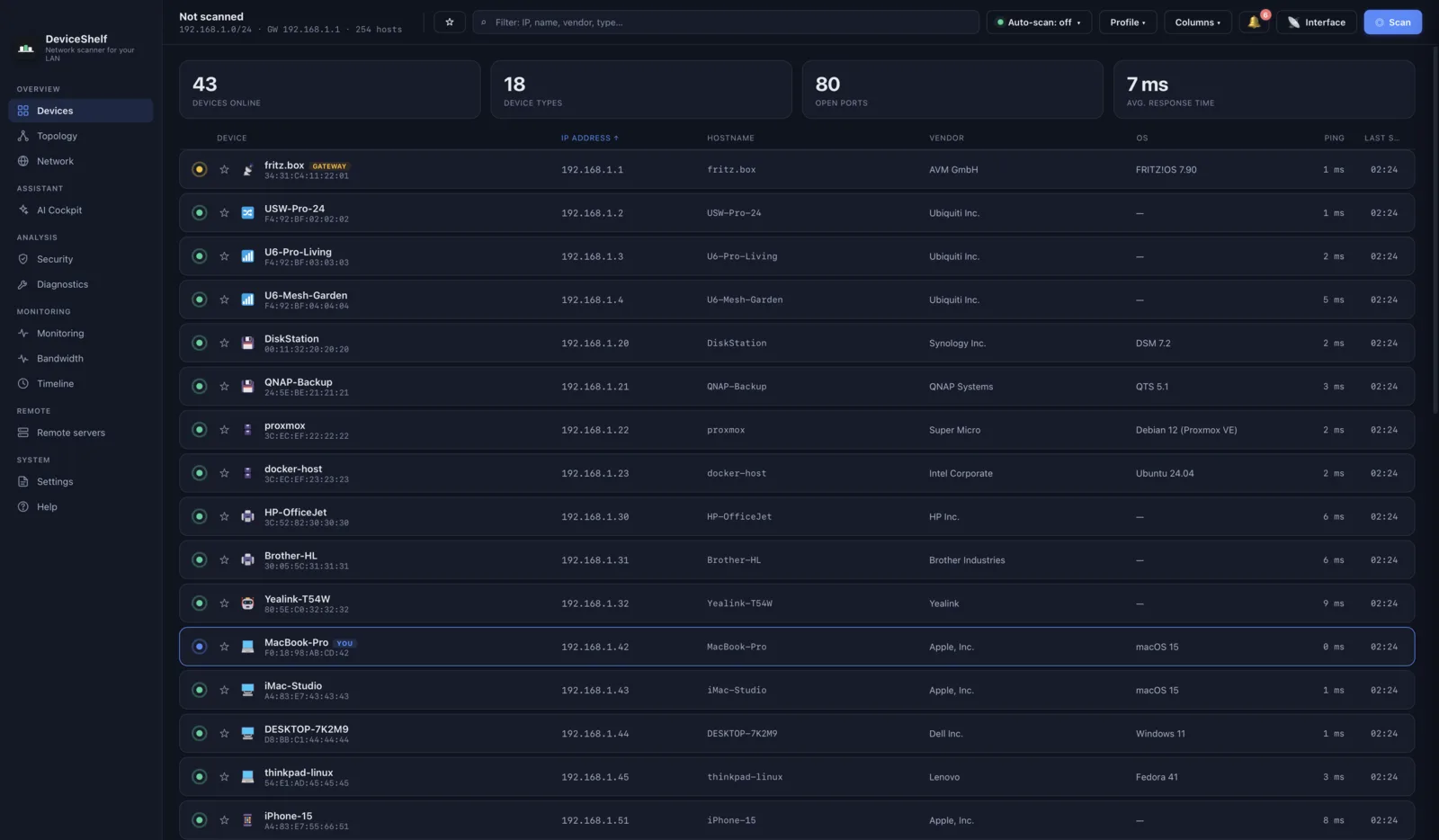
Best for: knowing what every device is and being told when something new joins, without any of it leaving your Mac.
Where others beat it: it costs money, and for a single ping sweep that is hard to justify. Nmap goes deeper on ports. Fing's phone app is better on a phone.
2. LanScan
A lean Mac App Store classic and the fastest way to answer "which addresses are in use". IPv4 discovery with hostname, MAC address and vendor, actively updated, and free to try. The paid unlocks are sold as in-app purchases, split into separate IPv4 Pro and IPv6 tiers, with a larger professional tier above them. There is no monitoring and no identification past the vendor name, so a Raspberry Pi and a smart plug both come back as a manufacturer and an address.
For a quick look at a subnet it is hard to argue with. Our longer write-up: DeviceShelf compared with LanScan.
Best for: a fast, cheap, native answer to which IPs are occupied.
Where it beats us: lighter, much cheaper, and on the App Store.
3. IP Scanner
A long-standing Mac-native scanner with a loyal following and a strong App Store rating, and among the most actively updated tools on this list. It discovers devices, lets you name them and assign icons so they stay recognisable between scans, keeps a history of what has been seen, and covers ping, Wake-on-LAN and port scanning. The free tier shows up to 15 devices, which is enough for a small flat and not for a house; the Pro upgrade is a one-time in-app purchase, with a separate, dearer Ultra edition that adds notifications on device changes.
Of the paid Mac-native options it is our closest competitor in spirit: same platform, same one-time-purchase model, and a shared preference for a readable list over a packet dump. It leans on manual labelling where we lean on automatic identification, which is a real difference in philosophy rather than a shortcoming.
Best for: people who like curating their own device list and want it to persist.
Where it beats us: cheaper, well established, and the manual annotation model is genuinely nice if you enjoy it.
4. Network Radar
Another Mac-native option, more oriented toward ongoing monitoring than a single sweep. It scans by range or interface, discovers over Bonjour as well as IP, and covers the utility belt properly: port scan, ping, traceroute, whois, Wake-on-LAN, remote shutdown. It will also alert you when devices join or leave, with rules attached, and it supports Shortcuts. A one-time purchase with no in-app purchases.
The interface is denser than LanScan's and expects you to know roughly what you are looking at.
Best for: a Mac-native tool with join and leave alerts, at a low one-time price.
Where it beats us: a third of our price, mature, and the Shortcuts integration is a nice touch we do not have.
5. Angry IP Scanner
Cross-platform, open source under the GPL, completely free, and one of the genuinely good answers on this page. It pings a range, resolves hostnames, checks ports, and extends through pluggable data fetchers with a wide choice of export formats. The Mac builds ship with their own Java runtime, so there is nothing to install separately, and separate Apple silicon and Intel bundles are provided.
Two things to weigh. There is no identification beyond hostname and vendor, and no monitoring or history. And the most recent release, 3.9.3, arrived in November 2025 with refreshed vendor data, so the project is still being looked after. Our comparison, for the cases where it is not enough: DeviceShelf compared with Angry IP Scanner.
Best for: free, open-source, cross-platform range scanning.
Where it beats us: free, open source, and it will still be free in ten years.
6. Nmap
The most capable port scanner ever written, free and open source, and the tool every other one on this page is measured against for depth. If you are comfortable in a terminal, nmap -sn 192.168.1.0/24 is a fine discovery sweep, and its OS and service fingerprinting goes further than any GUI here. The scripting engine will do things the rest of this list cannot approach.
The price is the learning curve. Flags, output formats and interpreting the results are on you, and the more advanced scan modes need elevated privileges. It does not come with macOS; you install it yourself, either from the official installer, which also bundles the Zenmap front end, or via Homebrew.
Best for: deep port and service analysis by someone who already knows what they are doing.
Where it beats us: depth, scriptability, and thirty years of credibility. We do not compete with Nmap; we cover a different job.
7. Fing Desktop
Fing's desktop app pairs with its very popular mobile scanner and a large crowd-sourced device database, which makes its identification genuinely strong, since that database is fed by millions of phones. The desktop client is polished and the mobile app is the best-known name in this category by a distance.
The trade-off is architectural. It is free for personal use but the free tier is capped at three scans a day, and the things people actually want it for (continuous monitoring, notifications, the advanced open-ports finder, router vulnerability checks) sit behind a yearly subscription for the personal tier that rises steeply for the professional one. It is also cloud-backed by design, where the rest of this list is not. Which model you want is a genuine preference rather than a right answer. Details: DeviceShelf compared with Fing.
Best for: people who live on their phone and want desktop and mobile in one account.
Where it beats us: the crowd-sourced database, and a mobile app we cannot match for reach.
8. SoftPerfect Network Scanner
Often assumed to be Windows-only, and it is not: there are current macOS builds for both Apple silicon and Intel, alongside Windows and Linux. It is the most administrator-flavoured tool here after Nmap: ping sweep, TCP and UDP port scanning, SSL and TLS certificate details, shared-folder discovery, Wake-on-LAN, remote shutdown, and export to HTML, XML, JSON, CSV or plain text.
Two caveats for Mac users. Some of its more interesting features, particularly the WMI remote system information, are aimed at Windows targets, so the macOS build is less compelling than the Windows one. And the licensing is business-shaped: the free trial displays only ten devices, and paid licences run from a single-device home licence up to single business licences and beyond, perpetual with a year of updates.
Best for: administrators who want export formats and protocol detail and do not need a pretty interface.
Where it beats us: export options, UDP scanning, and a cheaper entry price for a single home licence.
9. The macOS command line
Worth knowing even if you install something else, because it costs nothing and it is already there. arp -a prints the neighbours your Mac has spoken to recently, which after a bit of browsing is a decent partial list. ping confirms whether a specific address answers. netstat -rn shows your routing table and tells you your subnet, which is the number every other tool on this page wants.
The limits show quickly. The ARP table only contains devices your Mac happens to have talked to, so it is always incomplete. There is no identification, no port information, and nothing is stored between runs. It is a way to check something quickly, not a way to understand a network.
Best for: a thirty-second check with nothing installed.
Where it beats us: free, instant, already on your Mac.
Advanced IP Scanner, and why it is not here
The most-searched name in this category does not run on macOS. Advanced IP Scanner is Windows-only, there is no Mac build, and none has been announced. This catches a lot of people moving from Windows, because it is the tool they used for years and the obvious search returns a download page that quietly will not help them.
Running it through Wine or a virtual machine technically works and is more trouble than it is worth, since the native options above do the same job. Coming from Advanced IP Scanner specifically, the closest fit in feel is DeviceShelf or LanScan; we go through the differences in detail on our Advanced IP Scanner alternatives page.
LAN scanning is not Wi-Fi analysis
These get mixed up constantly, and buying the wrong category is a common way to waste money.
A LAN or IP scanner, which is everything on this page, works at the network layer. It answers which devices are connected, what are they, what are they exposing. Use it for inventory, for finding an unknown device, for checking what has opened a port.
A Wi-Fi analyser (WiFi Explorer, NetSpot, WiFi Signal and similar) works at the radio layer. It answers why is the wireless slow here: channel overlap, signal strength, interference, access-point placement. It will not tell you what is on your network.
The wording in the App Store makes this easy to get wrong, because "Wi-Fi and LAN scanner" usually means the tool scans a network you reached over Wi-Fi, not that it analyses the radio. If your complaint is "something unfamiliar is connected" or "I need a list of devices", you want a LAN scanner. If it is "the Wi-Fi is bad in the back bedroom", nothing on this page will help and you want an analyser instead.
Side by side
| Tool | DeviceShelf | LanScan | IP Scanner | Network Radar | Angry IP | Nmap | Fing | SoftPerfect |
|---|---|---|---|---|---|---|---|---|
| Price | One-time purchase | Free + paid in-app purchases | Free (15 devices) + paid upgrade | One-time purchase | Free (OSS) | Free (OSS) | Free tier + subscription | Trial + paid licence |
| Native Mac app | ✓ | ✓ | ✓ | ✓ | ✓ (bundled Java) | CLI | ✓ | ✓ |
| Device identification | ✓ (multi-signal, opt. AI) | Vendor only | Vendor + manual labels | Vendor + Bonjour | — | OS/service detection | ✓ (cloud DB) | Vendor + services |
| Open-port overview | ✓ | Basic | ✓ | ✓ | Basic | ✓✓ | Paid tier | ✓ (TCP + UDP) |
| Monitoring & new-device alerts | ✓ | — | Ultra edition | ✓ | — | — | Paid tier | — |
| Router client list | ✓ (19 brands) | — | — | — | — | — | ~ | — |
| Security report | ✓ | — | — | — | — | Manual (scripts) | Paid tier | TLS details |
| Works without account/cloud | ✓ | ✓ | ✓ | ✓ | ✓ | ✓ | Limited | ✓ |
✓ = yes · — = no · ~ = limited. Prices and features checked July 2026 against App Store listings and vendor pages, and shown in the currency each vendor quotes; they differ by tier, region and version, and taxes may apply. Check before you buy.
Which one should you pick?
"I just want to see what is on my network"
Start free. Angry IP Scanner if you do not mind a utilitarian interface, LanScan's free tier if you want it native. Both answer the question in a minute. The list often raises more questions than it settles, because a column of vendor names is not an explanation. That is where an identifying scanner starts to pay for itself.
"I switched from Windows and miss Advanced IP Scanner"
There is no Mac version and there will not be one. DeviceShelf is the closest in feel: a scan button, a readable list, nothing to configure. LanScan is the closest in weight if you want something minimal. Details on our Advanced IP Scanner alternatives page.
"Something unfamiliar is connected and I want to know what it is"
This needs identification, not discovery, which rules out most of the free tools. They will hand you the same MAC address your router already showed you. DeviceShelf and Fing are the two that will genuinely attempt an answer. We do it locally; Fing does it against its cloud database. Pick on that difference.
"Free is all I need"
Angry IP Scanner, and it is a genuinely good tool. If a terminal does not scare you, Nmap is more capable than anything else here at any price. Neither will watch the network for you, which is the line where paid tools begin.
"I want alerts but not another subscription"
Network Radar is the cheapest way to get join and leave alerts on a Mac. DeviceShelf costs more and does more with what it finds: identification, history, a security view, and one licence covering Windows and Linux too. Fing will do it too, but only on the subscription.
"I manage a small office network"
You want monitoring and a record, not a scan button: alerts when a device appears, history of what was connected, exposed-port visibility. DeviceShelf and Network Radar both cover this, and SoftPerfect is worth a look if export formats matter to you. Our server edition adds continuous headless monitoring, alerting and an API if you want it running on something other than your desk.
"I need deep port and vulnerability analysis"
Nmap, without hesitation, and it is free. GUI scanners including ours are not trying to compete on that ground.
Your first scan, step by step
Whichever tool you land on, the first run looks about the same.
1. Get on the network you want to look at. Scanners see the network your Mac is joined to. On a guest VLAN or a VPN you will scan that instead, which is the most common reason a first scan comes back nearly empty.
2. Confirm your subnet. Most tools detect it. If you need it yourself, System Settings shows your IP, or netstat -rn | grep default gives you the router. Home networks are usually 192.168.0.x, 192.168.1.x or 10.0.0.x.
3. Allow local network access. macOS asks the first time an app tries to reach other devices. Decline it and the scan returns nothing at all, which is worth knowing before you conclude the tool is broken. It lives under System Settings, Privacy & Security, Local Network.
4. Run the scan, then wait for the second pass. Live hosts appear in seconds; hostnames, vendors and identification resolve over the following half-minute as the tool queries each device. Judging the results after four seconds sells every tool here short.
5. Work through what you do not recognise. Match the obvious ones off by vendor. For the rest, an open port is usually the tell: 631 is a printer, 445 a file share, 554 a camera. Before assuming an intruder, remember that phones randomise their MAC address per network, so unfamiliar entries are usually devices you own.
6. Take a baseline. The scan is only half the value. Knowing what normal looks like is what makes the next unexpected device obvious, which is the argument for a tool that keeps watching rather than one you run when you are already worried.
Try DeviceShelf free for 7 days See the full comparison
Questions people actually ask
Does macOS come with a network scanner?
Not a graphical one. Network Utility, which offered a basic port scan and ping, was deprecated in Big Sur and has since been removed, with no replacement. The command-line tools that remain (arp, ping, netstat) will list some neighbours but will not tell you what anything is. Nmap is not installed by default.
Is there a version of Advanced IP Scanner for Mac?
No, and none has been announced. It is Windows-only. See the section above for what to use instead.
Is it legal to scan my own network?
Scanning a network you own or administer is ordinary practice and is what these tools are for. Scanning networks that belong to other people without permission is a different matter and may well be illegal where you live. Stay on your own LAN.
Why does a scan show devices I do not recognise?
Usually because phones and laptops randomise their hardware address per network by default, so your own devices appear as strangers. The rest are typically smart-home gear, a TV or a printer hiding behind an unhelpful vendor name. Genuine intruders are rare but not unheard of, which is the case for a tool that identifies devices rather than just listing them.
Do I need to pay for a network scanner?
Not for a one-off look; Angry IP Scanner and LanScan's free tier cover that. Paying makes sense when you need to know what each device is, want an alert when something new appears, or need a record of what was connected last week.
Will a scanner slow down my network?
Not noticeably. A sweep of a home subnet is a few thousand small packets over a few seconds. Aggressive port scanning across a large range is heavier, and some older IoT devices dislike being probed, which is why gentler scan profiles exist.
Does any of this work on iPhone or iPad?
Partly. iOS restricts what an app may see of the local network far more than macOS does, so mobile scanners are more limited by design. DeviceShelf has iOS and Android apps that work within those limits and can read the router's client list to fill the gaps.
All product names, logos and trademarks are the property of their respective owners. Mention here is for identification and comparison purposes only and does not imply any affiliation or endorsement. Feature and price details are gathered from public sources and may change; if you spot something out of date, please let us know.